A liquid-cooled RTX 5090 with a 1,000-watt power ceiling, a 16-core Ryzen processor, and a whole freaking screen attached to the graphics card. Does it cost a pretty penny? Uh-huh. Does it make demanding games feel like a little preview of the future? Absolutely.
The goal was to build an absurdly fast PC using off-the-shelf hardware, without turning it into an exercise in spending money purely for the sake of spending money. There is a difference. Admittedly, that distinction gets a little harder to defend when two sticks of RAM cost $1,600.
What makes this machine interesting is not just the frame rate. It is how sharp, smooth, and surprisingly quiet the whole experience becomes when the CPU, GPU, cooling, power delivery, and display are all operating at this level.
Key Takeaways
- The Ryzen 9 9950X3D2 balances high-end gaming performance with 16-core productivity capability.
- The RTX 5090 Lightning Z sustained over 3GHz at stock settings without constantly drawing 1,000 watts.
- Rendering resolution, DLSS, and frame generation are essential context for interpreting the gaming results.
- Extensive liquid cooling delivered impressive temperatures and surprisingly quiet operation in this roughly $10,000 build.
Table of Contents
- Choosing the Fastest CPU Is Not That Simple
- The Motherboard, Memory, and SSD: Fast Where It Counts
- A Big Case, Serious Cooling, and a Justifiable 1,600-Watt PSU
- The MSI RTX 5090 Lightning Z Is Completely Ridiculous
- A 540Hz OLED Display to Put the Performance Somewhere Useful
- Gaming Results: Gorgeous, Smooth, and Not Always What the FPS Counter Suggests
- Overclocking: More Power Budget Does Not Guarantee More Core Speed
- The Best Surprise Was How Quiet It Stayed
- The Damage: About $10,000
- Sponsor: Saily Travel eSIMs
Choosing the Fastest CPU Is Not That Simple
There is no single fastest CPU for everything. That sounds like an inconvenient way to start a no-compromises build, but the workload matters.
If gaming were our only concern, the eight-core Ryzen 7 9850X3D would be a compelling choice. For professional applications, though, individual core speed may matter less than having lots and lots of cores available.
Our compromise, if you can call it that, was the AMD Ryzen 9 9950X3D2. It combines 16 fast cores with AMD’s 3D V-Cache across both core complexes. That gives us the gaming-focused cache we want without sacrificing the core count that makes a machine useful for serious work.
This is not a workstation build that happens to run games, nor a gaming machine that falls over the moment you ask it to do something productive. We wanted both.
The Motherboard, Memory, and SSD: Fast Where It Counts
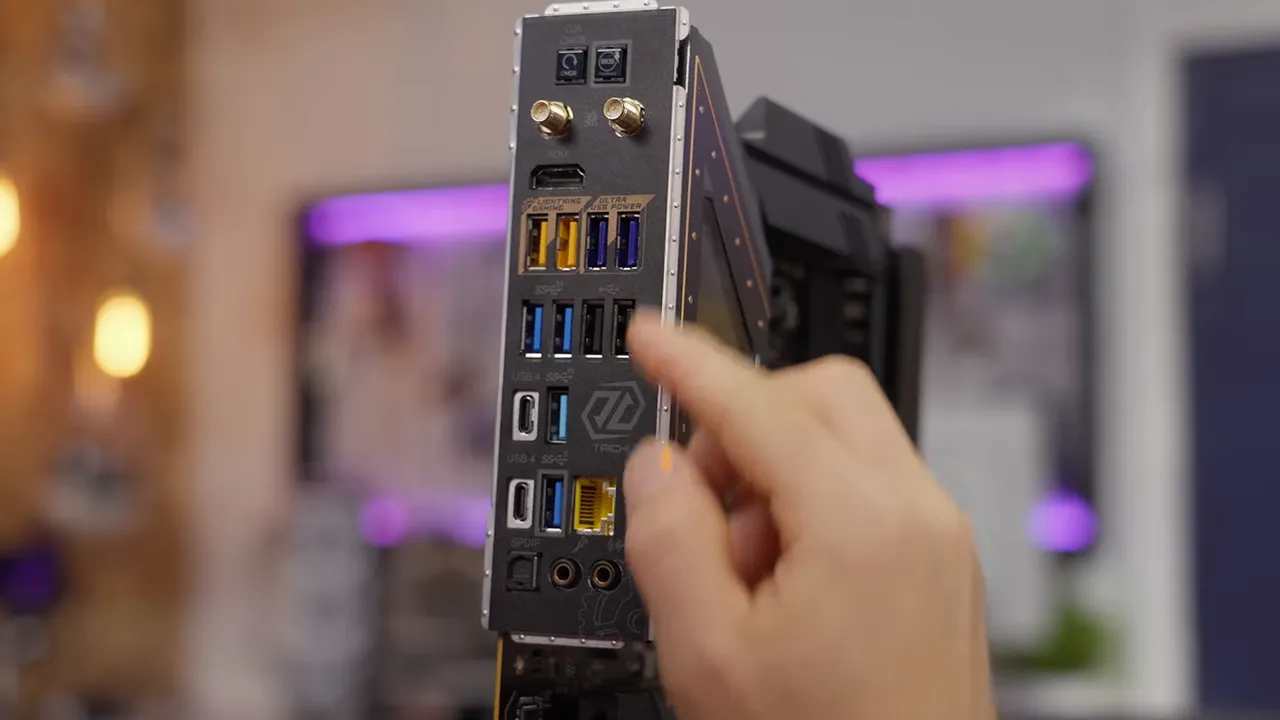
ASRock X870E Taichi: Connectivity Is Part of Performance
Motherboards do not usually change application performance and benchmark results the way they once did. Their features can still make an enormous difference to your workflow.
The ASRock X870E Taichi gives this system a suitably high-end foundation:
- Wi-Fi 7 for fast wireless connectivity.
- 5-gigabit Ethernet for high-speed wired networking.
- USB4 ports for demanding external devices.
- PCIe Gen 5 connectivity for expansion slots and M.2 storage.
- Support for high-performance CPUs and memory without making those components the only fast things in the machine.
We also got a good price on it. Yes, that still matters in a build like this. Especially once the memory bill arrives.
$1,600 RAM, Without Chasing the Biggest Speed Number
Our G.Skill Trident Z5 Neo RGB kit runs at 6,000 MT/s with CL26 timings. It was painfully expensive, despite not being anywhere close to the highest-transfer-rate DDR5 available.
That is deliberate. On an AMD platform, the best-performing memory configuration is not necessarily the one with the most impressive number on the box. Memory latency and the relationship between the memory subsystem and the processor’s internal clocks matter, too.
The idea is to choose a low-latency configuration that works well with the platform, rather than blindly chasing bandwidth. A faster-rated kit is not automatically a faster gaming experience.
None of that makes $1,600 for two DIMMs feel normal. It just explains why these particular DIMMs were here.
WD Black SN8100: Gen 5 Storage With Its Own DRAM
For storage, we used a 2TB WD Black SN8100 NVMe SSD. It brings PCIe Gen 5 performance and its own DRAM cache, completing a platform that is not short on speed anywhere obvious.
Processor, memory, SSD: installed. Now we need somewhere to put all this stuff.
A Big Case, Serious Cooling, and a Justifiable 1,600-Watt PSU
Fractal Meshify 3 XL: Practical Over Pointlessly Extravagant
The Fractal Design Meshify 3 XL might seem almost pedestrian next to the rest of these components. Good. The enclosure’s job is to accommodate the hardware and let it perform, not become a separate monument to financial irresponsibility.
Its useful features include E-ATX motherboard support, powerful included fans, room for graphics cards up to roughly half a meter long, and accommodations for up to three enormous radiators.
That last point matters. This machine has separate liquid-cooling systems for the CPU and GPU, so radiator space is not a theoretical concern.
Noctua NL-LC1-42: Speed Without the Racket
For the CPU, we chose the Noctua NL-LC1-42 liquid cooler. It is expensive, but loving fast computers does not mean loving loud computers.
We used an unconventional airflow arrangement, drawing air into the case through both the front and the top. With the CPU radiator up top and the GPU radiator at the front, that arrangement gives both cooling systems access to outside air.
The result was not just good temperatures. During gaming, the lack of intrusive pump noise was genuinely striking.
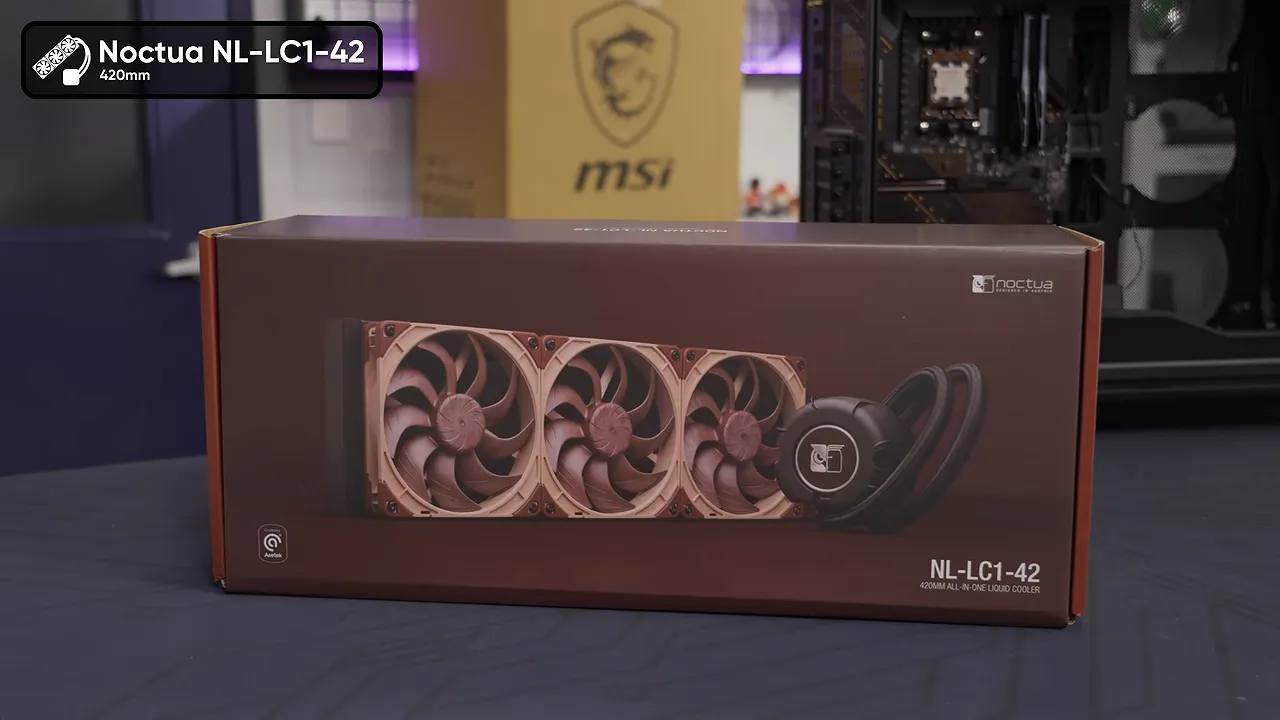
Noctua’s acoustic treatment around the pump deserves some credit here. After hearing the cooler in an actual system, rather than just encountering it at a demonstration, the difference was obvious.
One important installation tip, learned the dumb way: do not assume the pump’s acoustic cover is meant to be pulled off. The demonstration units had encouraged that assumption. This one appeared to involve glue. Leave it alone.
Seasonic PRIME TX-1600: This Is Not Where You Cheap Out
A 1,600-watt power supply is excessive for most gaming PCs. This is one of those rare builds where it is a defensible choice.
The Seasonic PRIME TX-1600 provides the capacity for a graphics card with a four-digit power ceiling, alongside a high-end CPU and everything else in the system. Our Labs testing of the PRIME TX-1600 Noctua Edition also found exceptionally low voltage ripple, ranking among the best results the team had measured despite its enormous output capacity.
The drawback is price. But if you are building a computer like this, saving money by compromising on the power supply would be a spectacularly strange decision.
Our cable requirements included the motherboard connection, two CPU power connections, and two 12V-2x6 GPU power connections.
Yes. Two. For one graphics card.
The MSI RTX 5090 Lightning Z Is Completely Ridiculous
When the GPU arrived, its shipping box was big enough that people in logistics thought it contained a complete prebuilt PC. Honestly, even by that standard, it looked a little oversized.
Inside was one MSI GeForce RTX 5090 Lightning Z, bringing:
- 32GB of GDDR7 memory.
- A dedicated 360mm liquid-cooling radiator.
- A power ceiling reaching 1,000 watts out of the box.
- An integrated screen that connects over USB.
Getting it installed was not entirely graceful. The vertical mounting arrangement was less cooperative than we would have liked, and the rear of the finished installation was not exactly an aesthetic triumph.
Then we connected the USB cable, and the graphics card became a tiny additional Windows display. Could you run a game on it? Technically, yes. Would you want to? Not with that USB display latency.
As a hardware-monitoring display, though, it is fantastic. And completely unnecessary. Both things can be true.
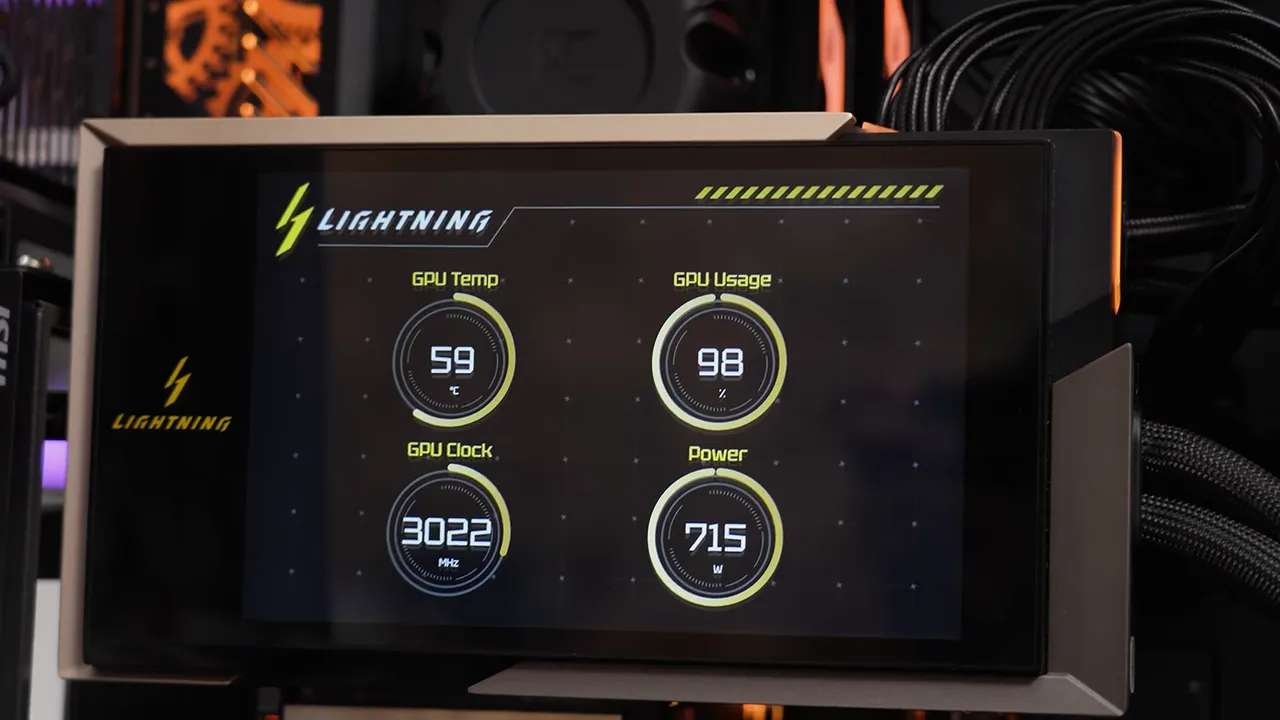
Under an early gaming load, we saw the GPU holding above 3GHz at stock settings, while consuming a little over 700 watts. Other loads could push it higher, but the important distinction is that a 1,000-watt ceiling does not mean a constant 1,000-watt draw.
The card’s pump was also remarkably quiet. Whatever combination of cooling design and physical enclosure produced that result, we were not complaining.
A 540Hz OLED Display to Put the Performance Somewhere Useful
Instead of gaming on the graphics card, we paired the system with the 27-inch ASUS ROG Swift OLED PG27AQWP-W, running at 1440p and 540Hz.
It is a gorgeous display, and ASUS ROG’s recent monitor styling has been excellent. More importantly, it gives a system this fast a sensible place to send its frames.
Of course, a 540Hz refresh rate does not mean every demanding game suddenly runs at 540 FPS. The interesting part is how much graphical quality we can retain while still getting an unusually fluid experience.
Gaming Results: Gorgeous, Smooth, and Not Always What the FPS Counter Suggests
These were hands-on gameplay observations, not a standardized benchmark suite. Scenes, settings, reconstruction modes, and frame-generation options matter, so the numbers need their context.
In particular, native rendering resolution and frame generation are separate settings. DLAA uses native-resolution input for anti-aliasing, whereas DLSS Super Resolution reconstructs an image from a lower rendering resolution. Neither label alone tells you whether additional frames are being generated. NVIDIA’s DLSS technology overview explains those separate features.
Clair Obscur: Expedition 33
With the graphics settings cranked, Expedition 33 looked spectacular. We saw averages around 200 FPS, with reported 1% lows in the 55 to 60 FPS range.
The settings used DLAA at the full 2560 × 1440 resolution, and the configuration also had frame generation enabled. Treat that 200 FPS figure as the output of that configuration, not as a claim of 200 conventionally rendered frames per second.
Subjectively, the experience was excellent. The reported lows were much less noticeable than the numbers might suggest. That responsiveness matters more here than in a completely passive RPG, thanks to the timing-sensitive combat inputs and later boss encounters.
Black Myth: Wukong
Wukong initially produced the kind of numbers that make you stop and check the settings. We saw averages in the hundreds, with some cinematic moments reaching around 500 FPS, and reported lows around 85 to 90 FPS.
Then came the catch: DLSS was active. Those spectacular numbers were not the native-resolution result.
After switching to full-resolution rendering with the memory overclock still applied, performance remained excellent: approximately 90 FPS average and 75 FPS minimum in the scene we tested.
That is a much more useful result than an enormous number without its settings attached. Consistent frame pacing makes a tremendous difference to perceived smoothness, even when the counter is below 100 FPS.
First Light
With the settings cranked and DLAA selected for native-resolution rendering, First Light ran at roughly 150 FPS, with minimums around 100 FPS during our test.
The appeal of this machine was becoming pretty clear. It was not simply that games ran fast. They ran fast while looking the way we actually wanted them to look.
Overclocking: More Power Budget Does Not Guarantee More Core Speed
A stock RTX 5090 holding above 3GHz is already wild. Naturally, we tried to push it further.
An additional 200MHz core offset initially appeared promising, with only a modest increase in power consumption. Trying 300MHz with the game running ended that optimism rather abruptly. And, after more testing, even the 200MHz offset was not stable without further tuning.
That is the difference between a quick experiment and a validated overclock. A setting that works for a minute has not earned the right to be called stable.
For a proper tuning session, NVIDIA’s automatic tuning tools or manual voltage-frequency curve adjustments would be more appropriate. We were doing the quick-and-dirty version.
The GDDR7 Had More to Give
The memory was a more productive target. RTX 5090 GDDR7 can have substantial overclocking headroom, but pushing it harder consumes part of the card’s total power budget.
On a more constrained card, a large memory overclock can compete with the GPU core for that budget. Here, available power was not much of a concern.
We pushed the memory to a reported +2,000 MT/s overclock, and it appeared to run successfully through the Wukong testing. GPU power in that workload was still only around 500 watts.
The card’s relatively low power draw in several games, combined with its high sustained clocks, suggested there might be a well-selected chip under that cooler. That is a possibility, not something these quick tests could prove.
The Best Surprise Was How Quiet It Stayed
Even under FurMark, a deliberately punishing GPU workload, the lightly overclocked card stayed in the mid-60s Celsius.
And it was still pretty quiet.
There was airflow, obviously. You do not move this much heat without moving air. But the dominant sound was air moving, rather than an irritating pump or a collection of fans desperately trying to escape the case.
That is what makes this build feel genuinely high-end. An impressive FPS counter is one thing. Delivering that performance without turning the room into an acoustic endurance test is another.
The Damage: About $10,000
The finished build came to approximately $10,000. We never said it would be cheap. Still, hearing the total out loud hurt a little.
The graphics card accounted for roughly half the cost, while the memory alone was about $1,600. Once those two purchases are on the bill, even sensible choices elsewhere can only do so much.
Should most people buy a gaming system like this? No. Probably not.
Is it the uncontested fastest PC under every possible condition? Also no. A previous system tuned by a professional overclocker managed to be a little faster. Off-the-shelf component selection and expert tuning are not the same competition.
But as an example of what an extreme off-the-shelf gaming PC can deliver, this is fantastic: demanding games with gorgeous image quality, high frame rates, and far less noise than you might expect.
It feels a little like stepping into the future. A very expensive future, admittedly, but a pretty cool one.
Sponsor: Saily Travel eSIMs
Saily offers travel eSIM data plans in more than 200 destinations, including regional plans for trips across multiple countries. You can select a plan before leaving and install the eSIM once, rather than scrambling to arrange connectivity after landing.
One of our business-team members used it on a California trip, with a plan ready before arrival. Saily also offers an optional app-based US phone number for calling and SMS, useful for shopping, memberships, and deliveries without giving out your primary number.
Use code LTT at checkout for 15% off Saily eSIM data plans.


