RAM prices are ridiculous. GPUs aren't exactly doing us any favors. Even CPUs have joined the party. But good gaming PC deals still exist if you're willing to look somewhere other than the usual component retailers.
After finding a surprisingly capable gaming PC at Costco, we tried another unconventional source: the Dell Outlet. About $1,800 US later, we had a refurbished Alienware Aurora with a 20-core CPU, an RTX 5070, liquid cooling, and 64GB of DDR5 memory.
At the component prices we were facing during testing, that memory alone represented roughly $1,000. Opening this thing felt like briefly returning to a world where a fully equipped gaming PC could cost less than two grand.
Obviously, there's a catch. It's a Dell. It's also refurbished. The question is whether those compromises ruin the deal, or whether this is a genuinely good computer hiding behind some very OEM decisions.
Key Takeaways
- Our roughly $1,800 refurbished Alienware combined an RTX 5070, 64GB of RAM, and liquid cooling.
- Cooling and gaming noise impressed, but proprietary components and limited expansion complicate future upgrades.
- Dell Outlet prices varied dramatically, making configuration comparisons and component-price checks essential.
Table of Contents
- What We Got for About $1,800
- The Case Is Cheap in Some Places and Sensible in Others
- Cooling and Noise: Better Than the Weird Power Supply Suggests
- The Real Compromise Is Upgradability
- RAM, Storage, and Cable Management
- Dell and Windows Still Have Some Explaining to Do
- The Gaming Experience Is the Payoff
- How to Tell a Real Dell Outlet Deal From a Terrible One
- Sponsor: DeleteMe
What We Got for About $1,800
This wasn't a matter of opening the Dell Outlet and buying the first discounted tower. We had kept the site in mind after an earlier bargain hunt, and Pancratz periodically checked back until this configuration appeared.
Here's the important hardware:
- Processor: Intel Core Ultra 7 265F, with 20 cores.
- Graphics: Nvidia GeForce RTX 5070.
- Memory: 64GB of DDR5, installed as two 32GB DIMMs, rated at 5600 MT/s.
- Storage: A 1TB PCIe Gen 4 NVMe SSD.
- CPU cooling: A liquid cooler with two 120mm fans.
- Condition: Listed as like new, refurbished.
The listed purchase price was $1,794, which we'll round to $1,800. Importantly, this is what we found, not a promise that an identical machine will be sitting there at the same price whenever you check.
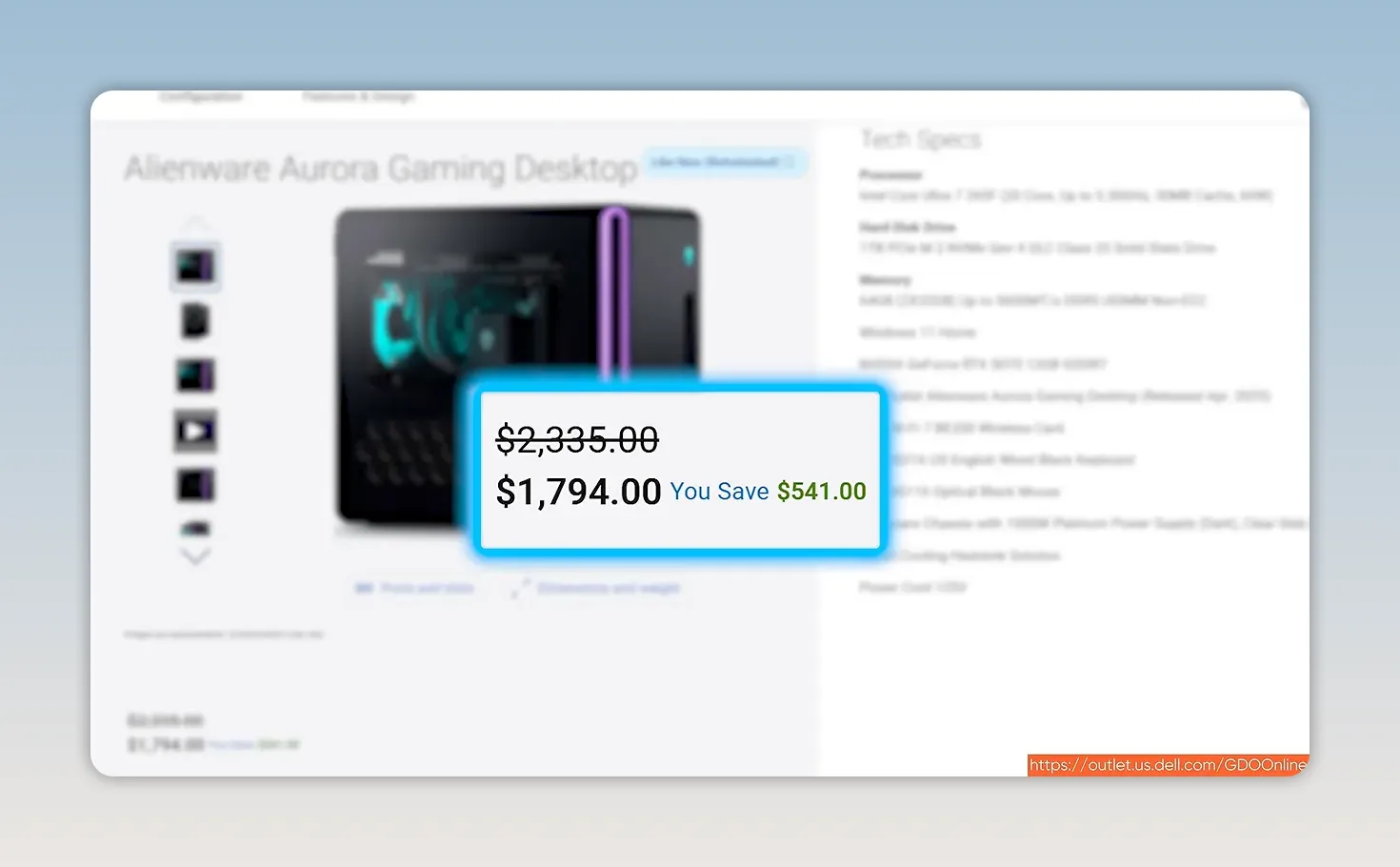
Refurbished, but remarkably clean
The mouse, keyboard, and power cord all appeared completely new. The computer itself was spotless, without even the usual dust that might give away a previous life.
That's worth pointing out because “like new” isn't universally interpreted that generously. I've received refurbished products with obvious scuffs and scratches before.
More recently, though, I've had surprisingly good experiences with everything from Apple refurbs to Best Buy open-box products. My suspicion is that established sellers have worked out that disappointing someone isn't worth the small amount they might save by stretching a condition description. The potential reputational damage costs more.
That's a theory, not a guarantee. In this case, at least, Dell delivered on the condition rating.
The Case Is Cheap in Some Places and Sensible in Others
The first obvious cost cut is the transparent side panel. It's acrylic rather than the tempered glass you'd expect from most modern DIY gaming cases.
But the airflow layout is refreshingly sensible:
- A generous gap at the front gives the intake fans room to breathe.
- Side ventilation provides airflow near the graphics card.
- The top is ventilated for the CPU radiator's exhaust.
- A 120mm rear exhaust fan provides another route for hot air to escape.
Getting inside isn't completely tool-free, but one Phillips screw is hardly a major hardship. Remove that, and the side panel comes off.
The interior isn't especially pretty. That doesn't automatically make it low quality. Dell spends money on things that don't necessarily photograph well, including a surprisingly substantial metal structure around the side window. That likely helps with electromagnetic interference compliance and shipping durability, even if it makes the panel heavier rather than more glamorous.
The graphics card isn't going anywhere
Dell also takes GPU support seriously. There's a bracket supporting the middle of the card and another securing its far end. The result is a graphics card that is very firmly restrained for shipping.
That means there's no internal packing foam to fish out before the first boot. Unbox it, connect it, and you're ready.
One less elegant choice is the use of an eight-pin to 12V-2x6 graphics power adapter. When you're designing the whole computer, why not use a power supply with the appropriate native connector? It works, but it's an odd extra complication.
Connectivity is a mixed bag
The rear motherboard connections are adequate, rather than generous:
- Two USB-C ports, including one rated for 20Gbps.
- Four USB-A ports, only two of which are USB 3.
- 2.5Gb Ethernet.
- Separate audio input and output jacks.
- Optical S/PDIF output, which somehow made the cut.
The front is more convenient, with three USB-A ports, one USB-C port, and a headset combo jack. Credit where it's due: that's a useful selection for everyday peripherals.
Cooling and Noise: Better Than the Weird Power Supply Suggests
From the rear, the power supply initially looks tiny because so much of it is covered. Inside, it's a strange form factor, slightly shorter than a standard ATX unit, with small 40mm cooling fans.
My immediate reaction to those little fans was not positive. Tiny power supply fans don't exactly inspire confidence in a quiet gaming experience.
And yet, they never became a problem during ordinary use or torture testing. The system's cooling was genuinely good.
- CPU stress test: Temperatures stayed at roughly 85 to 90°C or below in OCCT's Linpack 2019 test.
- GPU stress test: The RTX 5070 stayed below 70°C in FurMark.
- Graphics cooling: The large pass-through cooler has plenty of cooling capacity for the card's 250W TDP.
There are two important asterisks, though.
First, a pass-through GPU cooler sends some of its hot exhaust directly toward the CPU radiator's intake. That's probably not a major issue in typical gaming, since games that fully load the graphics card often aren't simultaneously hammering every CPU core. It is still a thermal interaction worth recognizing.
Second, the CPU's package power repeatedly moved between approximately 120W and 180W under full load. This kind of power behavior is more familiar on OEM systems than enthusiast motherboards, but it means heavy workloads can experience fluctuating performance even when temperatures remain under control.
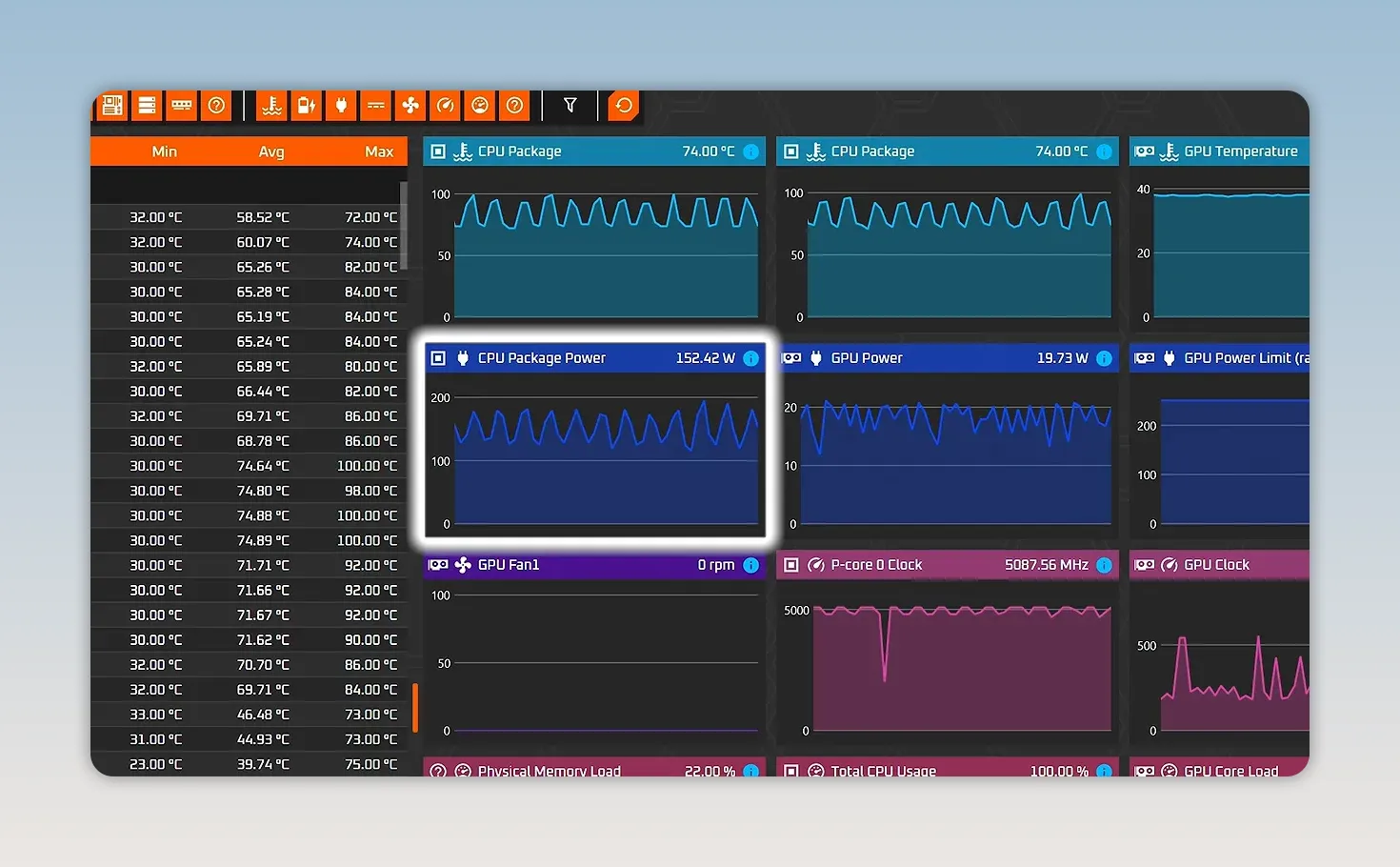
In other words, the cooler isn't the problem. The system's power management is another part of the performance equation.
The Real Compromise Is Upgradability
Could you replace the motherboard? Probably, with enough determination. Some of the mounting holes appear as though they could line up with a standard board.
But that's the start of the project, not the end.
The installed motherboard uses a proprietary 12V-only power connection. A normal replacement board isn't simply going to plug into that. You would also need to solve the problem of fitting and connecting an appropriate replacement power supply.
Then there's the front I/O. Rather than using conventional cables to connect the case's front ports, Dell extends the motherboard itself forward to handle them.
From a manufacturing perspective, that makes sense. It simplifies assembly, improves consistency, and avoids long signal paths to fast connectors such as USB-C. From an upgrade perspective, it's a pain.
This is a computer to buy because you like its existing configuration, not because you expect an easy motherboard transplant later.
Expansion is limited, too
The PCIe expansion situation is sparse. The additional slot appears to be covered by the graphics card, while an empty rear expansion opening doesn't have a corresponding connector behind it. An available opening in the case doesn't necessarily mean you can add a card.
There are also only two memory slots, both already occupied. On an AMD platform, I would be less bothered by that choice. Intel's recent memory controllers can run four DIMMs at reasonably useful speeds, so having that option would have been nice.
Still, complaining about the lack of spare memory slots feels a little silly when an $1,800 machine already includes 64GB.
RAM, Storage, and Cable Management
The RAM's capacity is the exciting part. The performance specifications are less glamorous.
DDR5-5600 is fine, but the rated timings are loose compared with enthusiast kits. You're getting a lot of memory, not premium low-latency memory. Those are different things.
The SSD initially raised a similar eyebrow. It's a tiny M.2 2230 drive without onboard DRAM, rather than the sort of larger enthusiast SSD I would typically choose for a custom desktop.
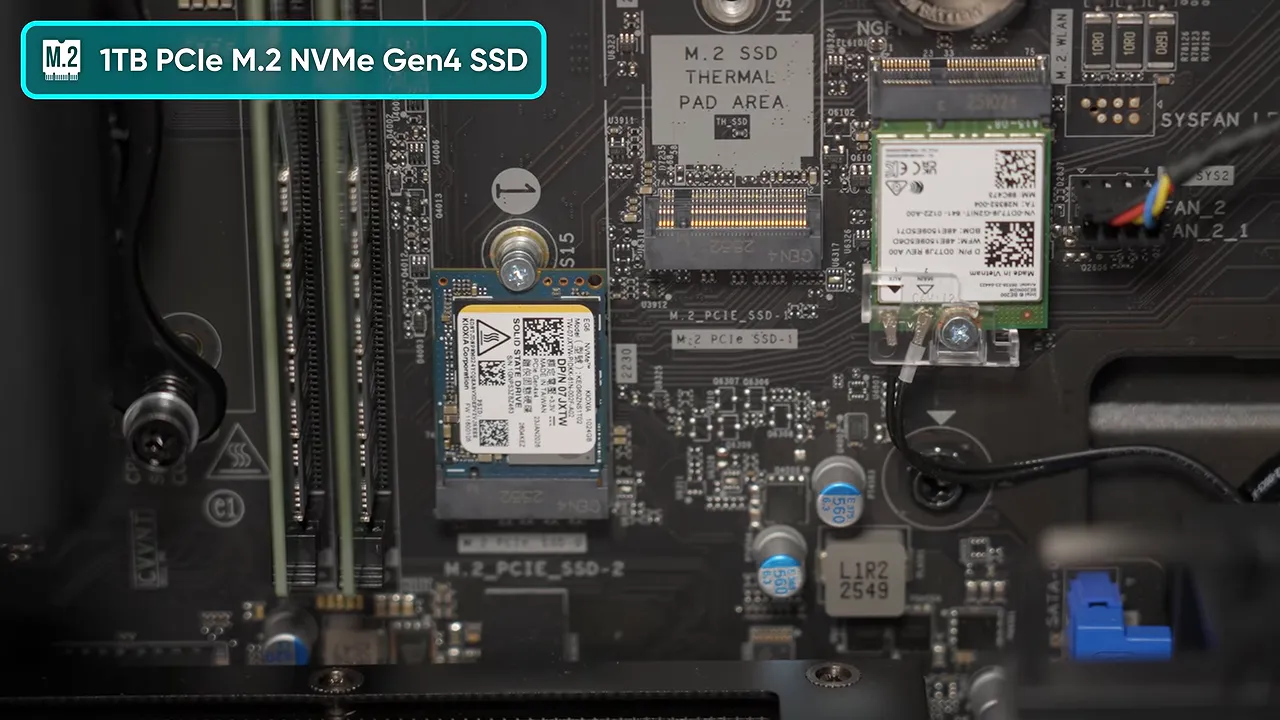
In practice, the Kioxia drive was better than its modest appearance suggested. While validating a game installation, its reported average response time remained below a millisecond.
It's a PCIe Gen 4 drive and supports Host Memory Buffer, allowing it to use some system RAM to assist with work that would otherwise benefit from onboard DRAM. That doesn't magically turn it into the fastest SSD available, but the real experience wasn't bad.
Cable management was also perfectly serviceable. Wires were zip-tied out of the fans, and Dell included spare power and data connections for adding a hard drive in the lower bay. Not flashy. Just sensible.
The lighting is fairly restrained by gaming PC standards, too. RGB appears around the cooler and along a front light strip rather than turning every available surface into a small nightclub.
Dell and Windows Still Have Some Explaining to Do
First startup brought a data-sharing prompt that leaned hard toward persuading me to hand Dell personal information. Not a great welcome.
On the positive side, the Nvidia drivers were effectively current when the machine shipped. They were about two months old when I opened it, but the box had also been sitting around for about two months. Fair enough.
The Alienware control software was less impressive. Menus opened slowly, its performance controls largely boiled down to fan speeds, and the software was consuming around 300MB of RAM for duties that included changing the RGB.
Yes, this machine has memory to spare. No, that's not an excuse.
Windows contributed its own nonsense. A system-tray speed-test option looked as if it might provide a convenient built-in diagnostic. Clicking it instead opened a Bing search for a speed test. That's a search shortcut dressed up as a system feature. Come on.
These were mostly minor software irritations rather than reasons to reject the hardware. Unwanted utilities can be removed.
Sleep behavior was inconsistent
Sleep had worked normally during my office use, but a later attempt didn't inspire the same confidence. The lighting switched off while the fans continued spinning, and clicking the mouse brought the lights back.
So I wouldn't give sleep functionality an unqualified pass based on this experience. There was also the wonderfully odd placement of the drive activity LED on the rear I/O, where it's particularly unhelpful if you sit in front of your computer like a normal person.
The Gaming Experience Is the Payoff
For all the proprietary hardware and software silliness, actually playing a demanding game on this system was excellent.
At 4K with DLSS set to Quality, flying around an expansive late-game environment produced roughly 65 to 70 FPS, with occasional dips to around 50 FPS. Those dips weren't particularly intrusive in that game.
During that session, the GPU was around 60°C and the CPU around 50°C.
Those are observations from that particular gameplay session, not a claim that every game will perform identically. But the combination of smooth play, low temperatures, and low noise was exactly what I wanted from a gaming desktop.
And the biggest part? The thing was barely audible.
No, we don't have a numerical acoustic result to attach to that impression. Subjectively, though, the system was quiet enough that I had to lean in to appreciate how little noise it was making.
That's what makes this machine interesting. It isn't simply a cheap pile of desirable parts. Despite some funky decisions inside, it delivers a genuinely pleasant gaming experience.
How to Tell a Real Dell Outlet Deal From a Terrible One
Does this mean DIY PC building is in trouble? It's a question worth exploring, but the Dell Outlet alone isn't about to settle it.
Our configuration undercut current component pricing by hundreds of dollars. Other listings were nowhere near as compelling.
During the few days I used the Alienware as my daily system, I checked the outlet regularly. The range was enormous. Some configurations looked as if they effectively included 128GB of memory for free relative to prevailing prices. Others were spectacularly bad.
One listing paired an RTX 5060 with 16GB of RAM for roughly $2,000. That was more than we paid for an RTX 5070 and 64GB. A little extra storage didn't rescue the value proposition.
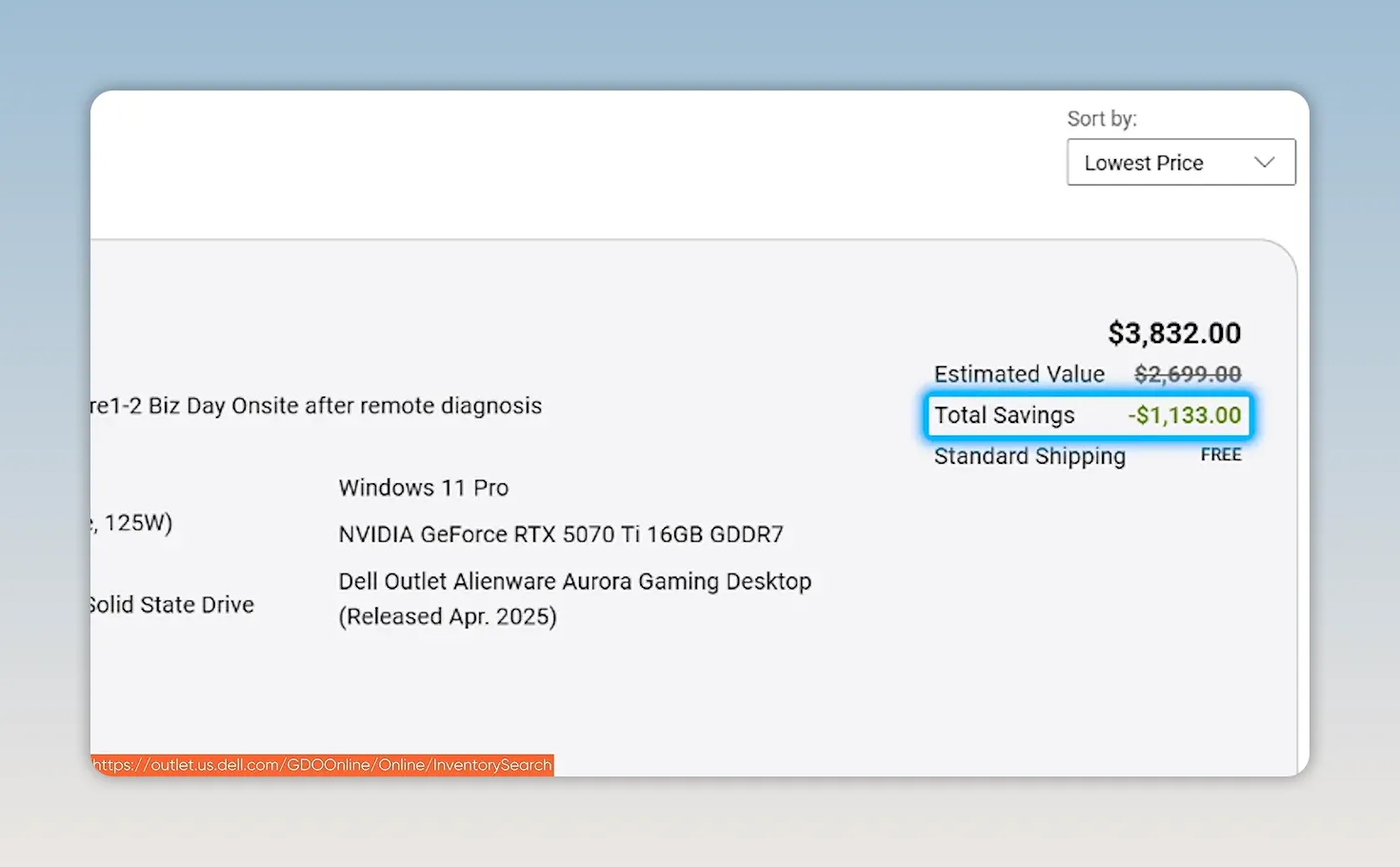
Another listing displayed negative savings of $1,133. Apparently, the discount was an opportunity to pay more. What a privilege.
The warranty terms we encountered were favorable compared with buying a new PC from another vendor, which strengthens the case for considering refurbished systems. But the exact listing and its terms still matter.
Here's the sensible buying process:
- Check periodically. Our deal came from patience, not assuming every outlet listing was good.
- Compare the actual configuration. GPU model, RAM capacity, storage, and cooling matter more than a prominent savings label.
- Sanity-check component prices. Build a comparable parts list on PCPartPicker before committing.
- Account for the compromises. Proprietary power, integrated front I/O, and limited expansion have value implications of their own.
- Read the condition and warranty details. A clean unit with favorable coverage is a different proposition from an uncertain secondhand purchase.
The verdict: this particular refurbished Alienware was a good deal and a good gaming PC. It's not the ideal foundation for endless upgrades, and Dell's software could use a serious diet. But for someone happy with the installed hardware, its quiet operation, effective cooling, and strong gaming experience make those compromises much easier to accept.
Don't buy the first outlet computer you find. Do check the parts, check the price, and be ready to recognize a genuinely good configuration when it appears. Good PC deals aren't extinct. They just require a little more hunting.
Sponsor: DeleteMe
Data brokers can legally buy and sell personal information, including names, phone numbers, and addresses. That exposure can make phishing and other scams easier to target.
DeleteMe is a subscription service that handles personal-information removal from hundreds of data brokers and people-search sites. The company says it has been operating for over 15 years and performs its work in-house. Our offer provides 20% off US consumer plans with promo code LTT20 at checkout.


