Costco probably isn't the first place you think of when you're building a gaming setup. Apparently, that is a mistake. We put together an entire desk setup from Costco, including the furniture, dual monitors, audio, battery backup, gaming PC, and some extremely enthusiastic garage lighting.
Was every product great? Absolutely not. Did learning the prices make me considerably more forgiving? Repeatedly.
The interesting part of shopping this way is the selection. In several categories, we didn't choose a product because it won an exhaustive comparison. We chose it because it was the only suitable option available. Costco's approach seems to be finding something good enough for a broad range of people, then getting the price down. That can work surprisingly well, provided your requirements aren't too specific.
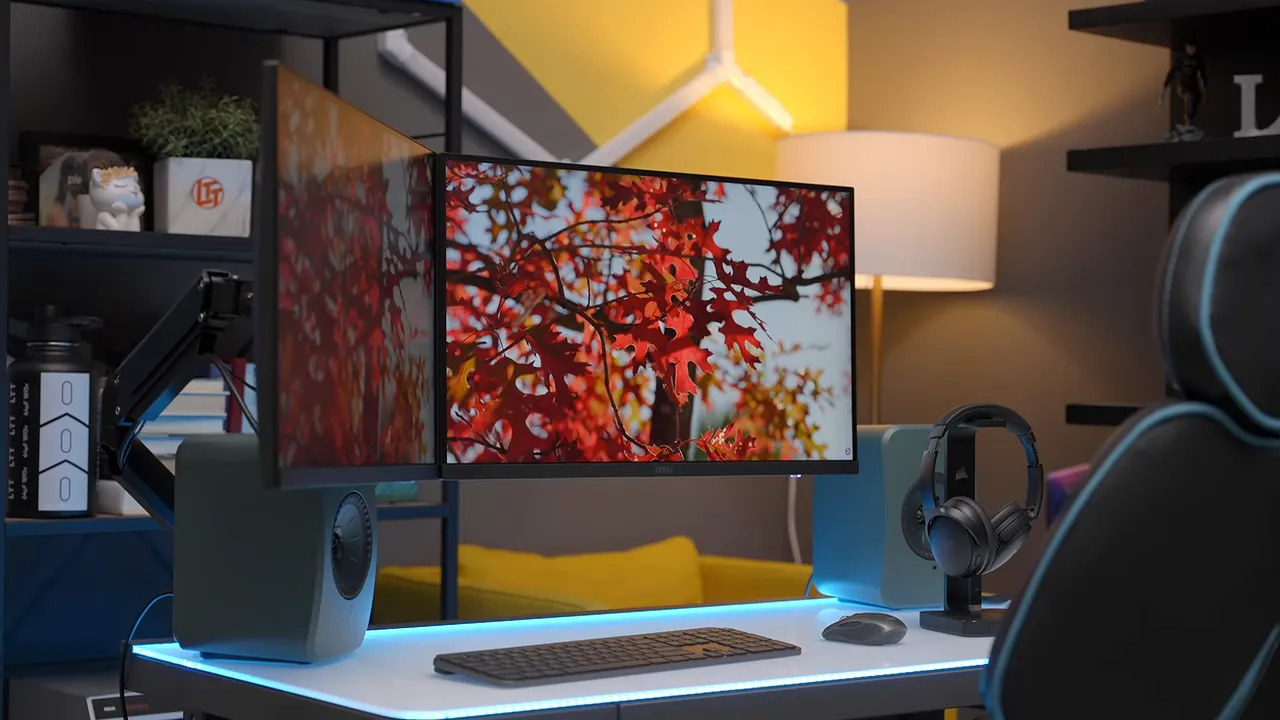
Prices below reflect this shopping exercise, not guaranteed current offers. Availability also varies by region, and our monitor arm came from Costco Canada.
Quick Summary
- The $150 MSI monitors were the standout value in the all-Costco gaming setup.
- Affordable furniture came with compromises in comfort, load capacity, and how the pieces fit together.
- Limited selection made Costco less suitable for choosing specialized gaming peripherals.
- The Bose headphones worked easily, while frustrating KEF setup prevented a useful speaker evaluation.
Table of Contents
- A $299 Sit-Stand Desk With RGB and Some Questionable Legs
- The $149 DPS Chair: More Padding Than Comfort
- The Monitors Were the Standout Deal
- Logitech Keyboard and Mouse: Good Office Gear, Not My Gaming Pick
- KEF Speakers: Beautiful Hardware Meets a Frustrating Setup
- Bose QuietComfort SC: Expensive Feeling? No. Useful? Very.
- Hexagon Garage Lights: Subtlety Was Never an Option
- The $209 CyberPower UPS Was the Sensible Upgrade
- A Costco Gaming PC Can Be a Deal, but Not Automatically
- The Verdict: Shop Costco for Value, Not Unlimited Choice
- Sponsor: UGREEN MagFlow Pro
A $299 Sit-Stand Desk With RGB and Some Questionable Legs
Our starting point was the Tresanti Aurora 47-inch adjustable-height desk with LED lighting. It has a glass work surface, a drawer, powered height adjustment, and RGB around the edge. At $299, that's a pretty appealing feature list.
Then you look at the legs.
The construction did not inspire tremendous confidence, and the 100-pound weight rating is remarkably low for a sit-stand desk. The lift motor also sounded decidedly unhappy under our improvised load test. It moved, but “technically doing the thing” is not quite the same as doing it reassuringly.
For an actual setup, that rating matters. Monitors, a mounting arm, speakers, and everything else on the desktop all count toward the load. This is not the desk to buy on the assumption that you can pile an unlimited amount of hardware onto it.
Still, $299 buys a lot here. The lighting looks good, the drawer is useful, and powered height adjustment is welcome. I don't love the desk, but I do like the price. That distinction is going to come up a lot.
The $149 DPS Chair: More Padding Than Comfort
A sit-stand desk still needs somewhere to sit. Ours was a DPS gaming chair, a product line with which my previous experience had not been particularly positive.
This one didn't immediately change my mind. The height adjustment rose slowly enough that you really had to get your weight off it and wait. More impressively, it managed to have a substantial amount of padding without feeling especially comfortable. Cheap foam is a powerful thing.
At first, I wouldn't have wanted to pay more than $249 for it. The actual price was $149. Okay. That changes the conversation.
There are much worse chairs around $150. One common problem with inexpensive padded chairs is that the cushion compresses until your tailbone is effectively resting on the wood underneath. This seat seemed to have enough material to avoid that immediate bottoming-out sensation.
That's not a long-term ergonomic endorsement. It is an acknowledgment that the chair makes more sense at its actual price than its appearance initially suggested.
There was also a compatibility problem: the chair didn't tuck neatly under the desk at a reasonable working height. Buying the furniture from one store does not magically make the pieces fit together.
The Monitors Were the Standout Deal
The dual MSI monitors were where the Costco experiment started looking genuinely excellent. Each offered:
- A 27-inch IPS panel.
- A 2560 × 1440 resolution.
- A 180 Hz refresh rate on the 2024 model we received.
- A listed typical brightness of 400 nits.
The packaging introduced some confusion by listing 170 Hz alongside a separate 2024 specification of 180 Hz. Apparently, the calendar is an upgrade path now. The practical point is to check the exact model revision, rather than assuming every box with similar branding has identical specifications.
At this brightness and product tier, I wasn't expecting a meaningful HDR experience. But high-refresh-rate 1440p IPS gaming? That's a very nice place to be.
I guessed that anything below roughly $350 each would be reasonable. They were $150 each.
That's $300 for two monitors. Not one monitor and an optimistic plan to buy the second later. Two.
Whether Costco was being unusually good or the rest of the market had thoroughly damaged my expectations, this was the clearest win in the setup.
The $114 Fellowes Arm Required Patience
To hold the displays, we bought the Fellowes Platinum Series dual monitor arm for $114. It was the only arm available to us through Costco Canada.
Assembly was, in the proud tradition of monitor arms, more annoying than it needed to be. We ran into an order-of-operations problem where installing one part blocked access to another screw. The included Allen key became useful immediately after we had spent time trying not to use it.
MSI did contribute one genuinely thoughtful detail: small extensions that screw into the recessed VESA mounting holes. These give the arm's mounting plate clearance instead of forcing it down into an awkward recess.
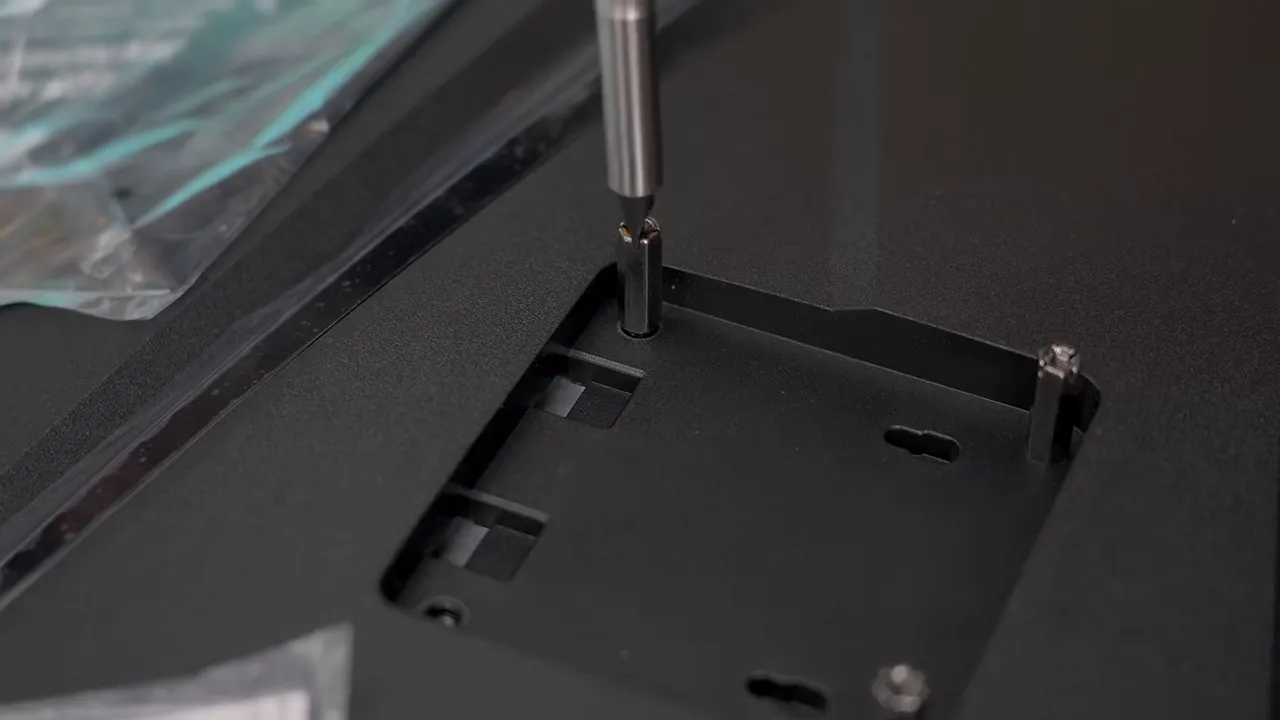
Clamping the arm to the desk was another adventure. The desk's narrow rear edge limited the contact area, and our first attempt slipped. That was partly self-inflicted: I had forgotten the protective grip pads for the top plate. We also managed to scratch the desktop and make a mess of some adhesive while correcting things.
The useful lessons from our less-than-useful installation technique are straightforward:
- Check how the clamp contacts both the top and underside of the desk.
- Install the supplied grip pads before tightening anything.
- Read the assembly sequence before another component blocks a screw.
- Adjust the arm tension to support the monitors instead of letting them droop.
Eventually, we had two mounted displays and a much clearer desktop. Success. It only required a small engineering comedy.
Logitech Keyboard and Mouse: Good Office Gear, Not My Gaming Pick
The Logitech keyboard and mouse bundle was, once again, the available choice rather than a carefully targeted gaming purchase.
There was plenty to like. The packaging used cardboard thoughtfully, the keyboard felt solid, and a metal backing helped explain why it felt better than an all-plastic slab. The included MX Anywhere 2S mouse also had useful premium features, particularly its switchable click-to-free-spin scroll wheel.
Most importantly for this particular desk, it tracked on glass. We hadn't found a desk mat at Costco, but the mouse didn't need one to function properly.
The spoken price discussion got muddled, with guesses of $149 and $199. The on-screen correction put the bundle at $99.99, making it a much more attractive deal.
My main problem was size. I have small hands, and this mouse still felt too small. We took it to someone with larger hands for a second opinion, and the result was essentially: yes, that is a small mouse.
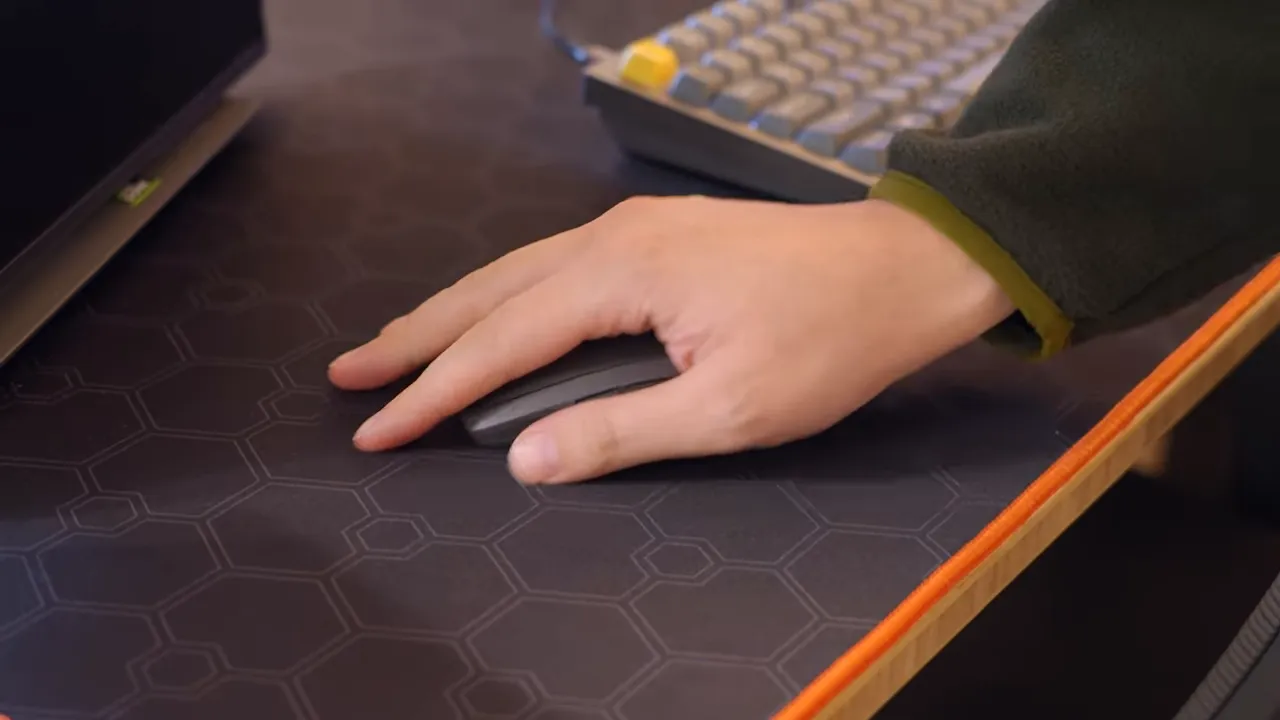
For a compact productivity setup, that may be fine. For a dedicated gaming setup, I'd choose something else. During actual gameplay it tracked perfectly adequately, so this wasn't a case of the mouse simply failing to work. It was a case of working does not necessarily mean well suited to the job.
KEF Speakers: Beautiful Hardware Meets a Frustrating Setup
The KEF LSX II LT wireless bookshelf speakers were initially one of the most exciting parts of the build. They looked fantastic, had reassuring weight, and offered a much more ambitious feature set than basic desktop speakers.
At $399 for the pair, the advertised features included:
- 200 watts of combined power.
- Wi-Fi and Bluetooth connectivity.
- AirPlay and Chromecast support.
- Network connectivity and support for streaming services, including Qobuz.
- A remote for playback, volume, and source control.
There was no subwoofer included, so bass performance was something we'd have needed to assess rather than assume. Unfortunately, we never got far enough for a useful listening evaluation.
First, Find Somewhere to Put Them
A 47-inch desk gets crowded quickly when it has two monitors. Putting the speakers upright behind the displays looked bad and obstructed them.
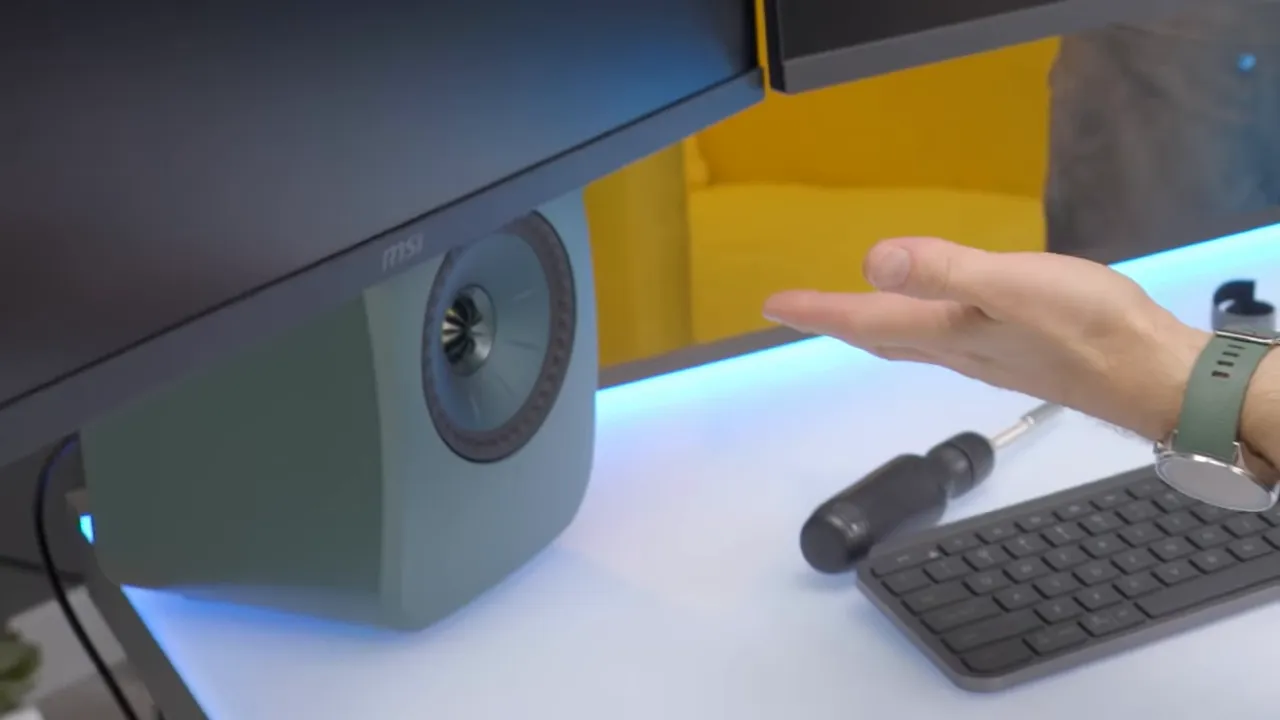
Laying them sideways under the monitors let us see the drivers, although that introduced another concern: the sides didn't have rubber feet to isolate them from the glass. Vibration against that surface could be unpleasant.
Then, Try to Get Any Audio
Once the PC was running, the speakers produced no sound. Bluetooth seemed like the obvious fallback. It wasn't.
The source indicators cycled through colors, and we ended up consulting the manual to decode what the speakers were doing. Those colors represented inputs such as TV, optical, USB, and Bluetooth. Repeated button presses made the state harder to follow rather than easier.
The remote didn't have an obvious dedicated Bluetooth pairing button. We tried source controls, considered a power cycle, and connected a USB cable. We still didn't get usable audio.
Eventually, the process appeared to funnel us toward the KEF Connect app and a login. At that point, I was out.
To be clear, that doesn't establish that the speakers cannot work or that every possible connection requires an account. It establishes that our first-time setup was frustrating enough that we abandoned it. A speaker can have excellent hardware and still offer an experience I don't want on my desk.
I should not need to solve a colored-light mystery to figure out how to pair a product. Put an obvious pairing control on it. Make the basic function obvious. Please.
Bose QuietComfort SC: Expensive Feeling? No. Useful? Very.
The Bose QuietComfort SC headphones started with nearly the opposite impression.
The carrying case felt cost-reduced. The headphones themselves also felt cheaper than I expected, and I wasn't impressed by the ear-cushion foam compared with regular QuietComfort headphones. My initial reaction was that anything above $139 would be difficult to justify.
They were $329. Oof.
There were redeeming qualities, though. Light construction makes for light headphones, and light headphones can be very comfortable. These were. They also did an effective job muffling the room around me, and my initial listening impression was that they sounded pretty damn good.
Then they saved the setup.
Unlike the speakers, the Bose had an easily identifiable Bluetooth pairing control. Activate it, pair the headphones, and audio works. No app detour. No login roadblock. We were gaming.
You're paying the Bose tax, and I still didn't love the materials at that price. But after wrestling with the KEFs, the value of an obvious, functional interface became extremely easy to appreciate.
Hexagon Garage Lights: Subtlety Was Never an Option
Why did our gaming setup need garage lights? Excellent question. Apparently, someone had made that decision, and now we had a box full of light tubes.
The modular hexagonal kit snapped together using corner and three-way connectors. Adhesive was already attached, which made mounting convenient, although planning the pattern first was important. We initially used too many corner pieces before realizing the larger layout needed more of the three-way connectors.
These things were also much bigger than the loose pieces initially suggested. Once assembled, we mounted them diagonally on the wall behind the desk.
The adhesive felt serious enough that I expected removal to take some paint with it. This was not the sort of installation I'd treat as temporary decoration without thinking about the wall underneath.
And then we switched them on.
Good lord.
They weren't RGB. They offered white-light settings, including a warmer option, but their first impression was simply an enormous amount of light. The dimming felt abrupt and stepped rather than smooth.
I could understand a price of $250 or $300 based on the physical amount of material, wiring, and LEDs. What I actually wanted to pay was closer to $100. The price was $109.
That's a good deal, even if putting garage illumination directly behind your gaming desk is a very particular lifestyle choice.
The $209 CyberPower UPS Was the Sensible Upgrade
After all that decorative lighting, we added something genuinely practical: a CyberPower uninterruptible power supply, or UPS, for $209.
A battery backup is one of my favorite ways to make a setup more reliable. Whether it comes from CyberPower, APC, Eaton, or another supplier, the important benefit is giving yourself time to save work and shut down properly when the power fails.
It's not as exciting as a second monitor. It doesn't illuminate an entire postcode. But when the lights go out, a UPS can be the upgrade you appreciate most.
We didn't perform a runtime test here, so there is no measured backup duration to report. The $209 price struck me as reasonable.
A Costco Gaming PC Can Be a Deal, but Not Automatically
The final major component was the gaming PC we'd already bought during an earlier Costco shopping trip. There was no reason to purchase a duplicate just to prove Costco sells computers.
Shopping for a prebuilt gaming PC at Costco has become a bit of an “if you know, you know” strategy. We've seen reports of genuinely compelling deals, especially manager specials and clearance pricing.
Not always. Sometimes.
The interesting opportunity is that a retailer may be clearing a SKU rather than repricing every individual component against the current hardware market. If the right machine is marked down at the right location, you can get lucky.
That isn't a substitute for checking the configuration. This exercise didn't include a fresh breakdown of the PC's specifications, price, or benchmark results, so it would be misleading to assign a complete setup total or make specific performance claims here.
The practical conclusion is narrower: Costco belongs on your comparison list for a gaming PC, particularly when clearance stock is involved.
The Verdict: Shop Costco for Value, Not Unlimited Choice
The finished setup was better than I expected. The biggest disappointment was the limited selection, not a complete collapse in product quality.
The monitors were the obvious highlight. The desk and chair became a lot easier to like once we knew their prices. The UPS was a sensible addition, and even the absurd wall lighting offered a surprising amount of hardware for the money.
The compromises were equally clear:
- Furniture fit still matters. The chair didn't tuck neatly under the desk, and mounting the monitor arm required care.
- Productivity peripherals aren't automatically gaming peripherals. The MX Anywhere worked on glass, but its size wasn't right for me.
- Premium features don't guarantee a good experience. The KEFs had an impressive feature list, but we never got them producing audio.
- Simple controls matter. The Bose headphones went from questionable value to the thing that let us actually use the setup.
Costco also offers a degree of purchasing reassurance, although you should check the applicable category, exclusions, and timing through Costco customer service rather than assuming every product has identical return terms.
Would I buy every component of my ideal gaming setup there? No. In particular, I'd shop elsewhere for my gaming mouse. But would I ignore Costco when looking for monitors, an affordable desk, or a discounted prebuilt? Also no.
The best approach is to take the deals that fit your needs, not force your needs to fit the only item on the shelf.
Sponsor: UGREEN MagFlow Pro
UGREEN sponsored this project with its MagFlow Pro lineup. The promoted power bank offers 25 W Qi2 magnetic charging and a liquid-cooling system with a visible coolant window. UGREEN claims it stays up to 18 degrees Fahrenheit cooler than the industry standard and can charge an iPhone 17 Pro Max from empty to 50% in 40 minutes. Those are sponsor claims, not measurements from our Costco setup testing.
The lineup also includes a charging stand for an iPhone, AirPods, and Apple Watch.


